Start from a template
A template is a whole website to start a project from: real copy, photos, Xodia CMS collections and motion, built on the Xodia template. Pick one in the Marketplace or in New project, and your new project gets the whole site as real code that stays yours to edit.
On this page
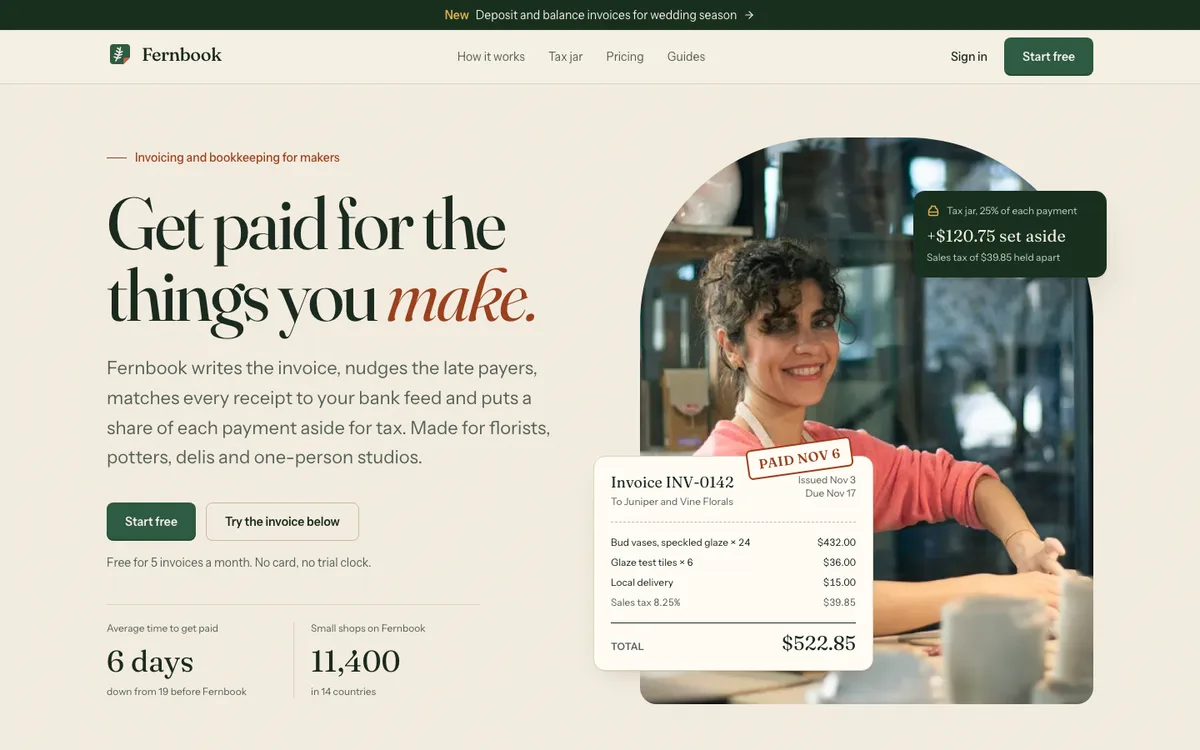
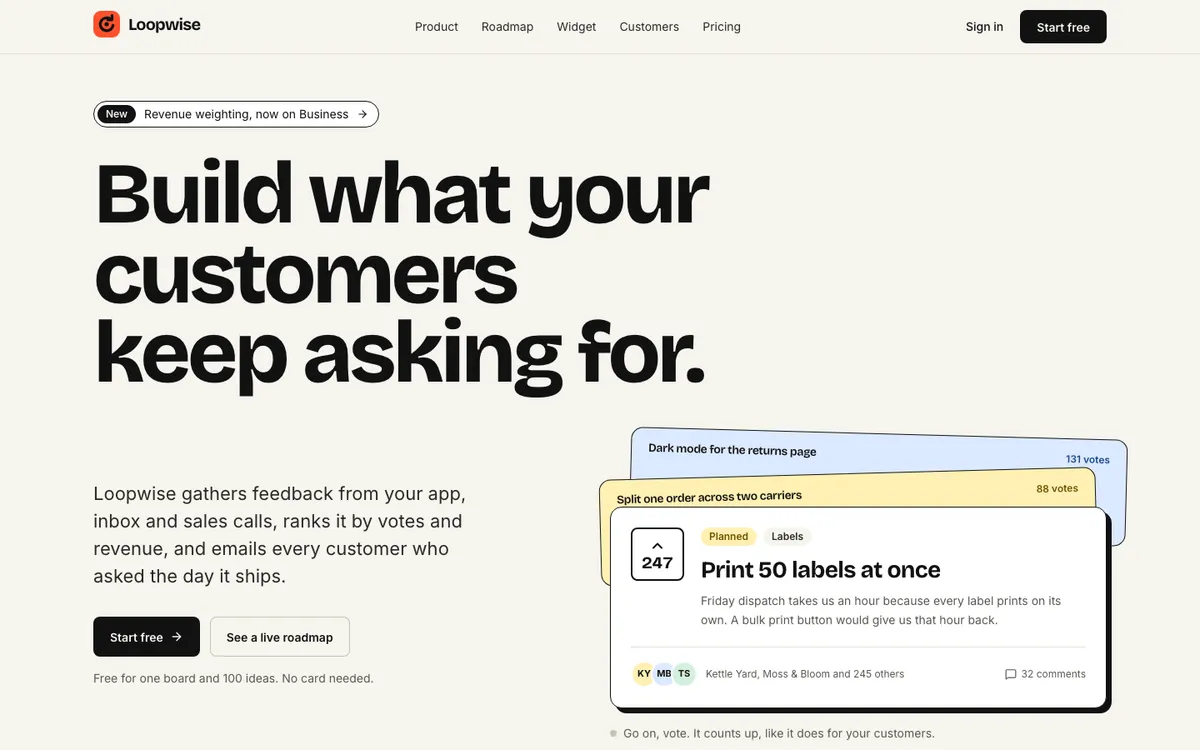
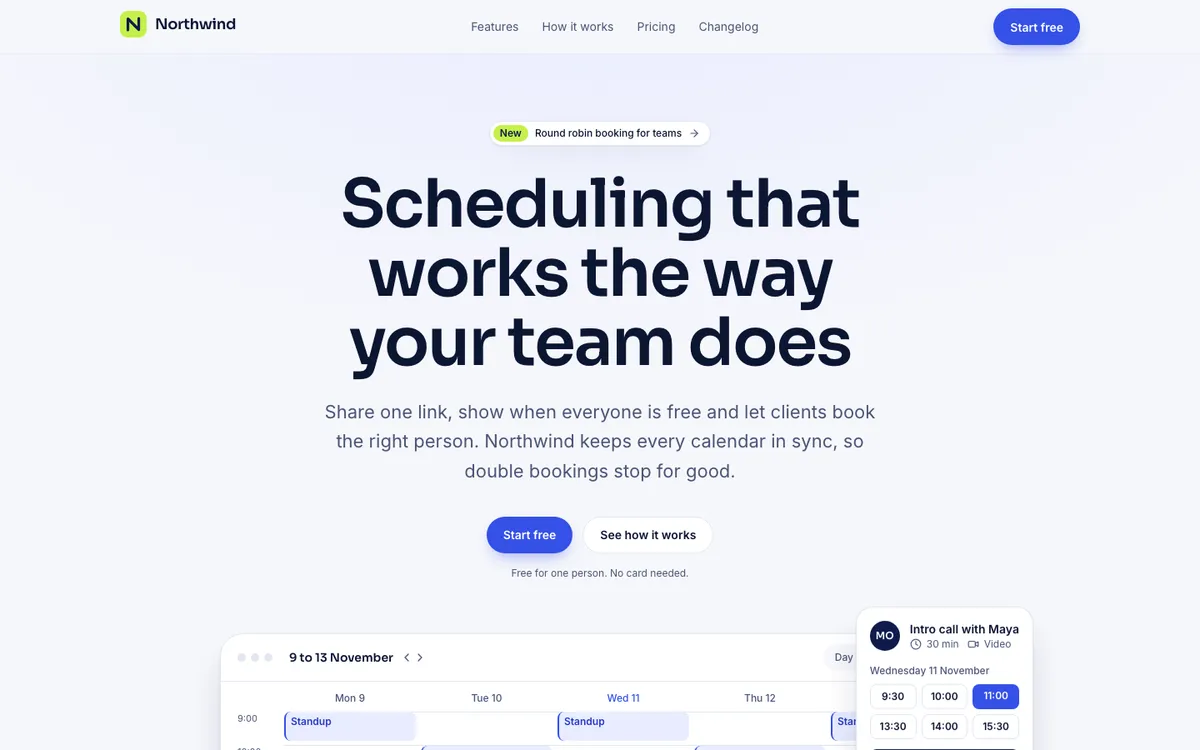
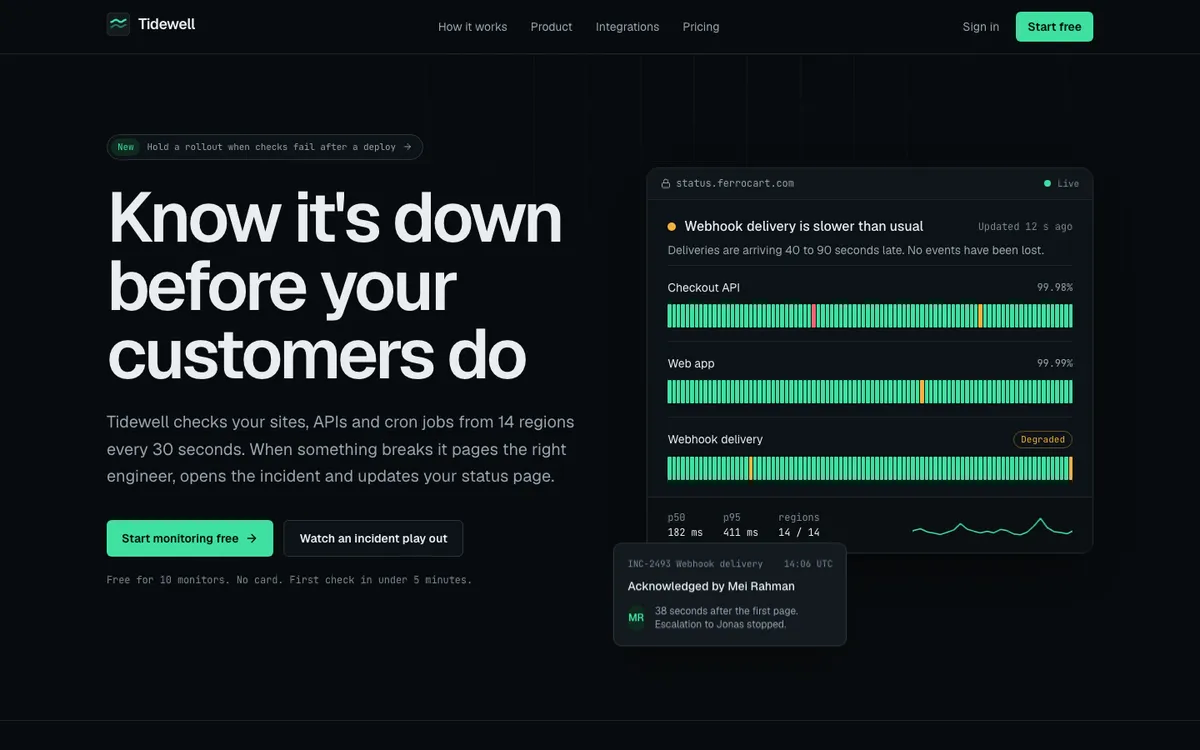
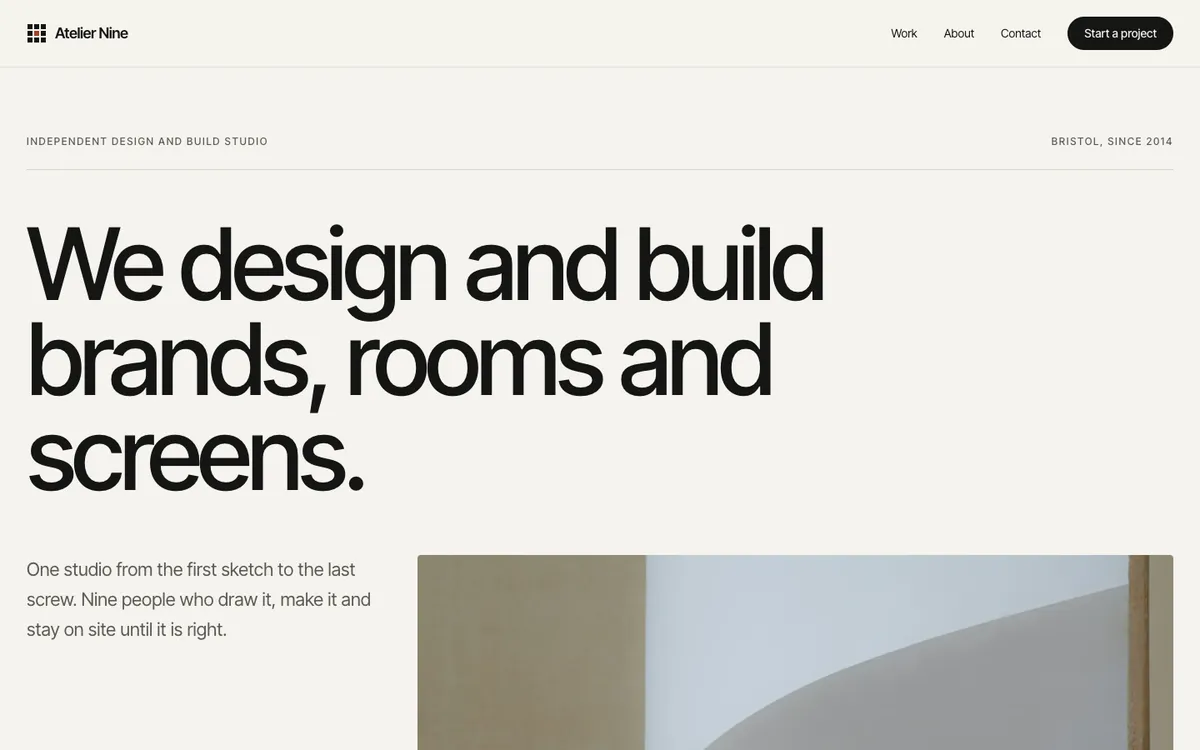
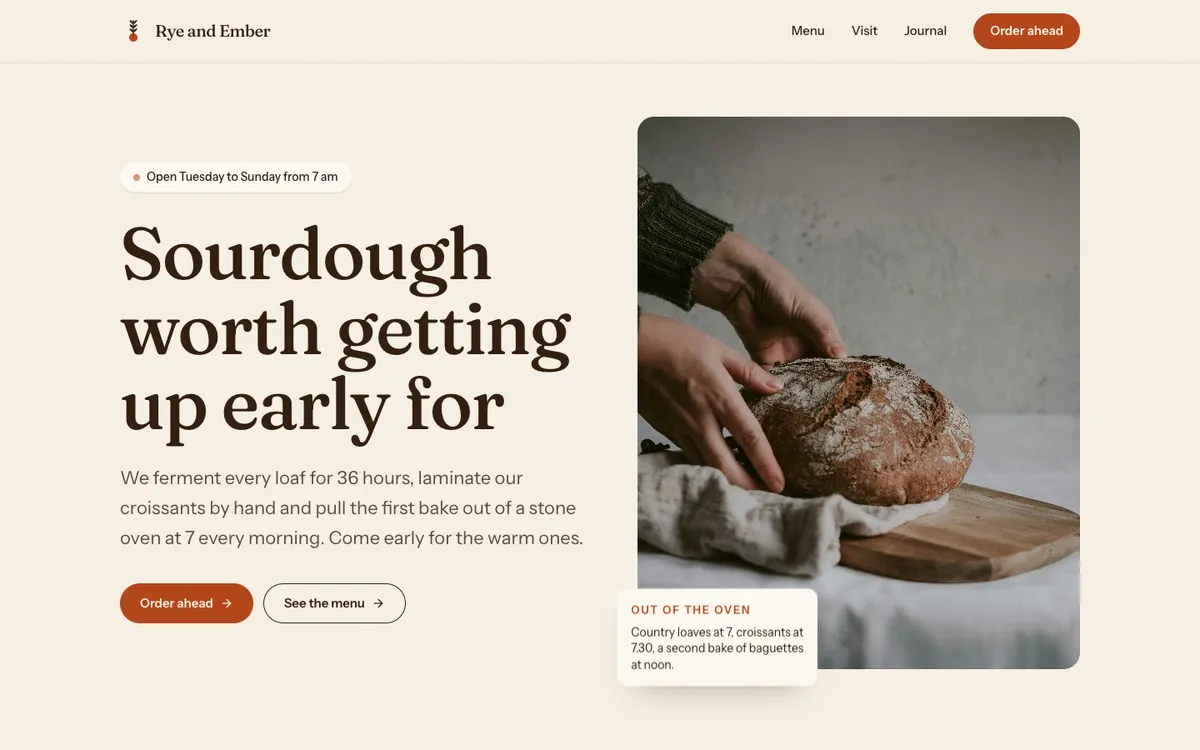
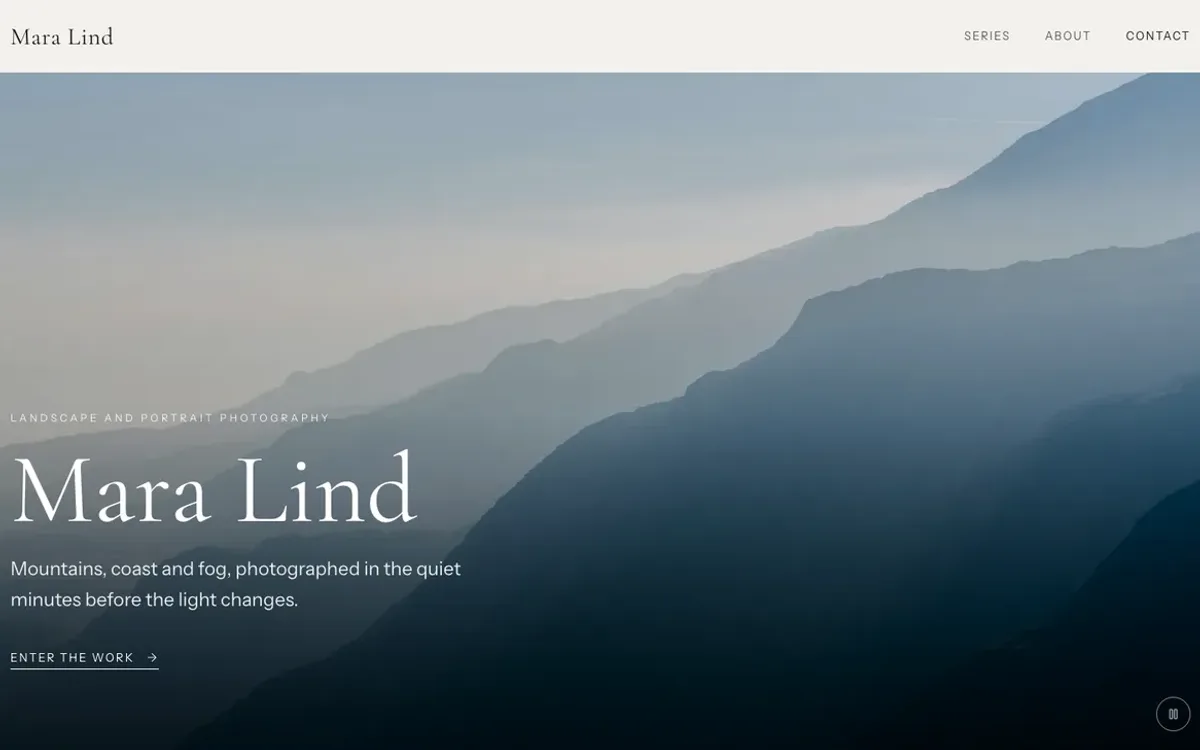
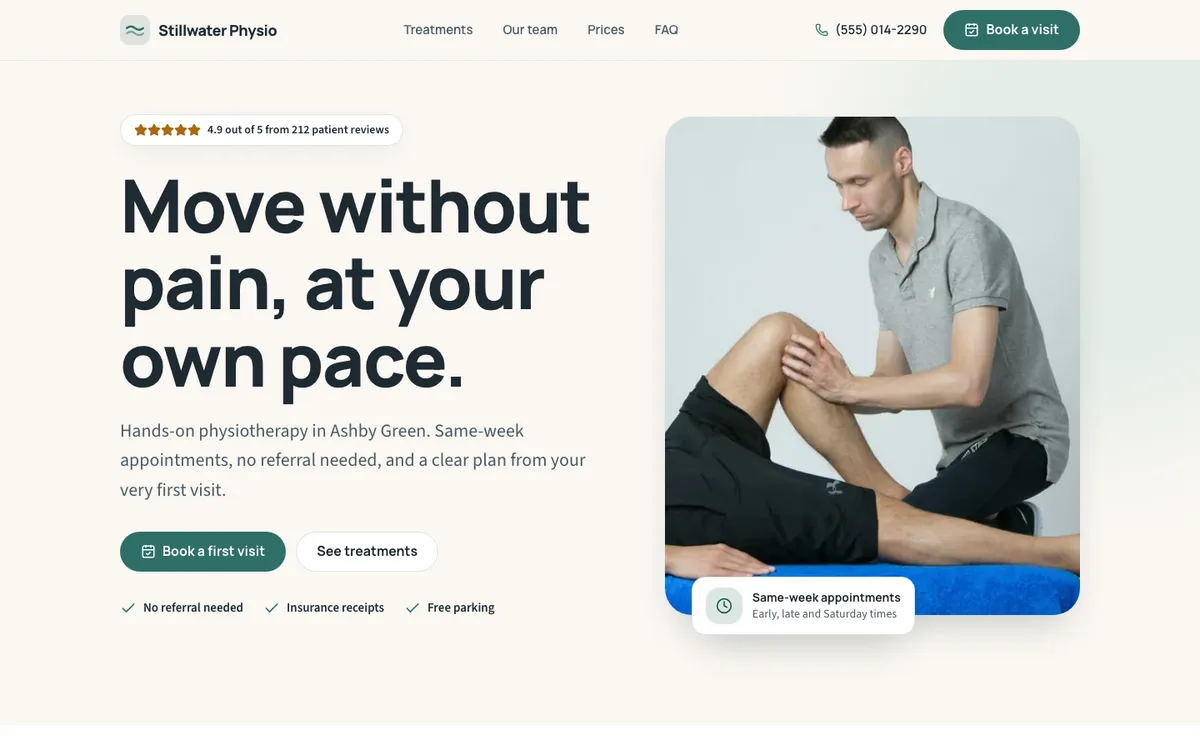
The Marketplace in Xodia: Start from a finished site, the Templates shelf with a search, category chips with how many templates each has, and the template cards, each with its picture, name, Free badge, category, page count and CMS, Motion and Forms.
The templatesLink to this section
Every template is free on every plan. Each has a page on xodia.ai with a live demo you can click through at desktop, tablet and phone sizes: see templates.
| Template | Category | Pages | Collections |
|---|---|---|---|
| Fernbook | SaaS and apps | 4 | Guides |
| Loopwise | SaaS and apps | 4 | Customer stories |
| Northwind | SaaS and apps | 4 | Changelog |
| Tidewell | SaaS and apps | 4 | Integrations |
| Atelier Nine | Agency and studio | 4 | Projects, Team |
| Rye and Ember | Food and hospitality | 4 | Journal, Menu |
| Mara Lind | Portfolio | 4 | Series |
| Stillwater Physio | Local services | 4 | Team, Treatments |
Use a template from the MarketplaceLink to this section
Open the Marketplace
In the sidebar, choose Marketplace. Templates is the first shelf. Pick a category chip, or search by name, kind of business or page.
Open a template
Choose a card to open its details: screenshots of each page at desktop and phone sizes, what's included, its pages and collections. Preview demo opens the live demo in a new tab.
Use this template
Choose Use this template, name the project, pick a folder if you use them and choose Create project. Xodia makes the project and opens it in Design.
The Use this template button on a template's page on xodia.ai opens the same details in the Marketplace, after you sign in or sign up.
Or from New projectLink to this section
Choose Start a new site
On the Projects page, choose New project, then Start a new site.
Pick a template
Under Start from a template, pick a card. Details on a card opens the same details as in the Marketplace, with Choose this template.
Create it
The project name starts as the template's name. Change it if you like and choose Create from, followed by the template's name.
Xodia's New project dialog on Pick a template or a starter: the blank starters, then Start from a template with the template cards and Rye and Ember picked, its name as the project name and Create from Rye and Ember.
Make it yoursLink to this section
A project made from a template opens with Make it yours at the top right of the canvas. Each step opens the place to do it, and you tick steps off as you go. Your ticks, and whether the card is folded or dismissed, stay with the project in this browser.
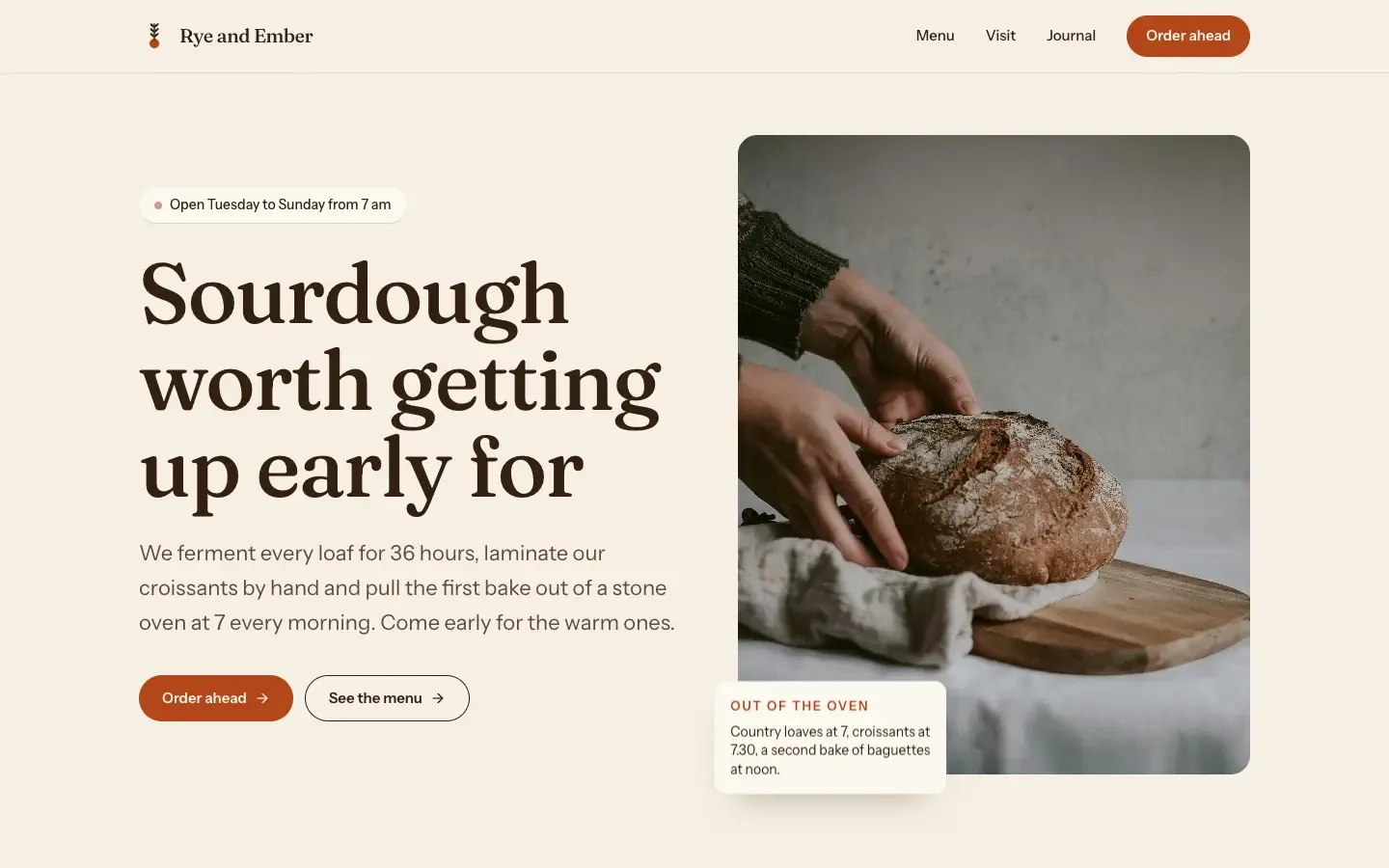
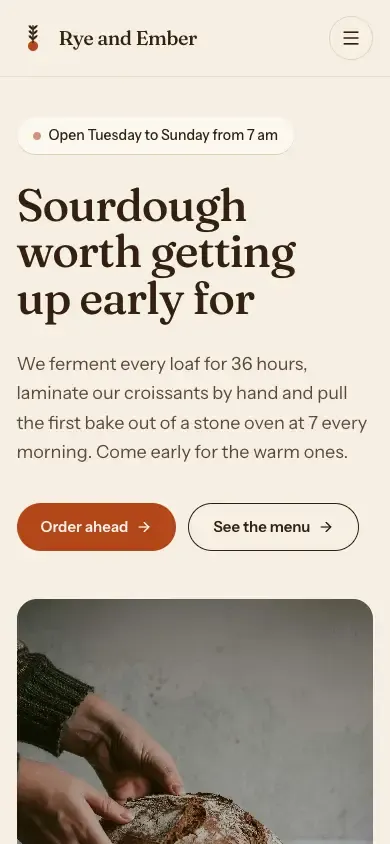
A new project made from the Rye and Ember template, open in Design: the template's home page on the canvas and the Make it yours checklist at its top right, with your name and logo, brand colours and fonts, photos, content, page titles and a prompt for your AI.
| Step | Where |
|---|---|
| Your name and logo | Double-click the name in the nav to rename it; add your logo in Assets |
| Brand colours and fonts | Variables: set once, every page follows |
| Swap in your photos | Assets |
| Your own content | The Content tab, for templates with collections |
| Page titles and share image | Each page's settings in Pages |
| Or ask your AI | Copy copies a prompt made for the template; paste it to your AI |
You can build with your own AI on every plan, Free included. See Ways to connect your AI.
Templates and your planLink to this section
Every template has 4 pages or fewer, within the Free plan's 4 a site, and a template's collection pages don't count toward them. A project made from a template counts toward your plan's projects like any other. Every template's CMS collections and items fit within Free's 2 collections and 100 items a site, so you can edit them on every plan.
Photos and creditsLink to this section
Photos in templates are free-license stock from Unsplash, free for commercial use with no credit needed on your site. CREDITS.md in the project lists each one with its photographer and source. The businesses, people and text are sample content, and sample team photos are labelled, so replace them with your own.